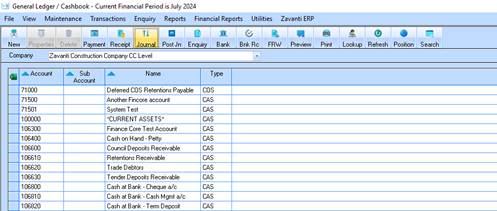
Zavanti ERP now provides many more options when Exporting Table-Window data to Excel (Export to Excel).
1. Every table that can have rows exported to Excel, or copied to the clipboard, now displays an icon in the top left hand corner of the table.
2. The icon displays a tooltip when your mouse is hovered over it.
3. Left or right click the icon, to give menu options.
4. If any rows are highlighted prior to clicking the icon, the ‘Copy Rows’ menu will be enabled. If any columns are selectable, the ‘Copy Columns’ menu will be highlighted.
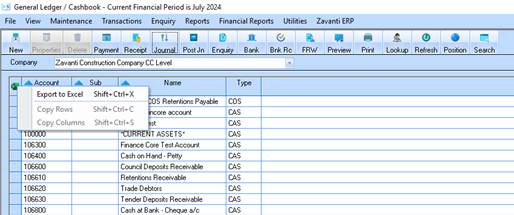
5. Selecting ‘Copy Rows’ menu will copy the selected rows to the clipboard.
6. Alternative to using the ‘Copy Rows’ menu , using ‘Shift-Ctrl-C’ will also copy the selected rows to the clipboard.
7. Selecting ‘Export to Excel’ menu gives the following dialog allowing options for Export.
8. Alternative to using the ‘Export to Excel’ menu , using ‘Shift-Ctrl-X’ ( give the table focus first by selecting one or more rows ) will also give the following dialog allowing options for Export