1. Navigate to an existing or new Supplier via the ‘Properties’ or ‘New’ pushbutton on the Accounts Payable front screen.
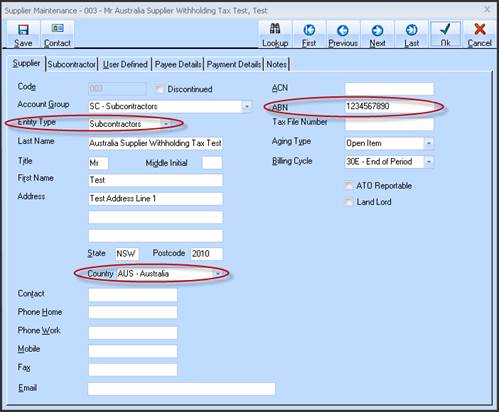
2. If a formatting Rule of ‘Australian Based’ was selected on Company Maintenance previously, the appropriate Australia based fields will now show, ready for data capture. Eg ABN Number etc.
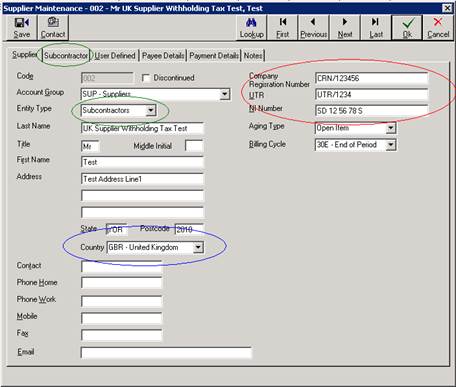
3. Country combo box now shows for Suppliers address. (Right click for Country maintenance).
4. If the Supplier is a Sub-Contractor – then CIS Construction Industry Scheme (Withholding Tax) rules apply to invoices paid to them.
|
|
If global Withholding Tax Codes and Rates have not previously been set – a warning dialog prevents further processing of Invoices. See below for Withholding Tax Code Setup |
5. Select ‘Subcontractors’ from the ‘Entity Type’ combo box. The ‘Subcontractor’ tab is now enabled to allow capture of Subcontractor Withholding Tax rules.
6. Click the ‘Subcontractor’ tab.
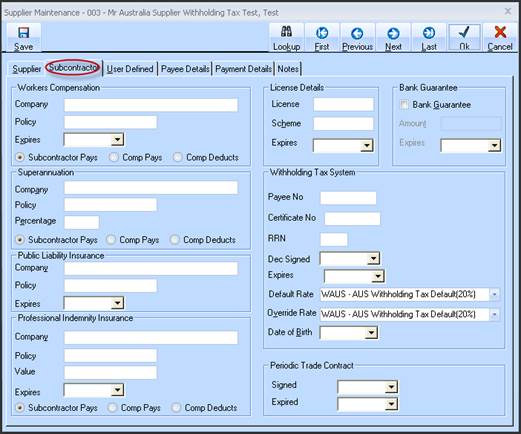
7. For Australia based processing, there must be 3 ‘Withholding Codes’ set, and they will list in this combo box. The Combo list can be viewed (dropped down), but items not selected. Once setup, the appropriate Code is selected automatically depending on other data entered on this tab. See below for Withholding Tax Code Setup
8. The ‘Verification Reference’ determines the Withholding Tax Rate for the Subcontractor. The HMRC will issue a Verification Reference as either:
9. All numeric eg 1234. Enter this and the Tax Rate will switch to the Lower rate.
10. Numeric and Alpha eg 1234/AB. enter this and the Tax Rate will switch to the higher rate.
11. If no Verification Reference is entered, the Tax Rate will default to the higher rate.
12. If the HMRC determines this supplier is not to have Withholding Tax deducted, click ‘Exemption Approved’, and the Tax Rate will be set to the Exempt Rate.
13. The rate set here determines the amount of Tax withheld from any payment made to this Supplier.
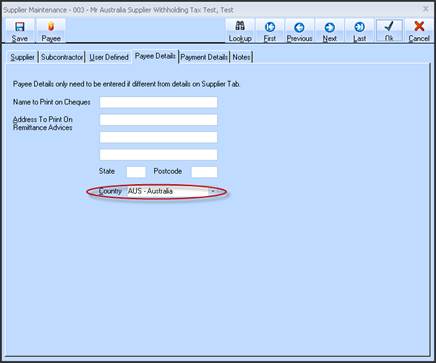
14. Click through to the ‘Payee Details’ screen and capture any Remittance advice details, including (new) Country field.
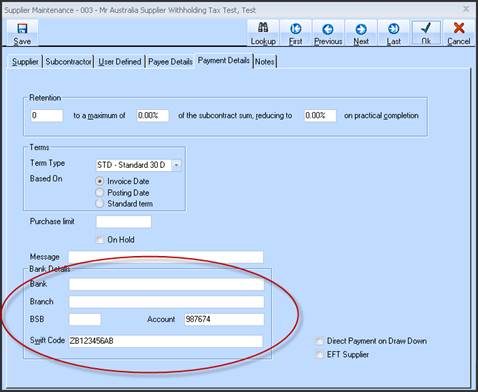
15. Click through to the ‘Payment Details’ tab to capture Bank details of Supplier, now including UK Sort Code (Input mask to ensure correct format of [nn-nn-nn] is entered) and Swift code.