Once a Supplier completes a Job and submits an invoice, it must be captured within the Job Cost application, which will create an Accounts Payable transaction with the appropriate Withholding Tax deductions taken care of.
1. Select ‘AP’ on the Job Costing main screen
2. Select ‘New’ on the next ‘Account’ Payable Invoicing’ header screen
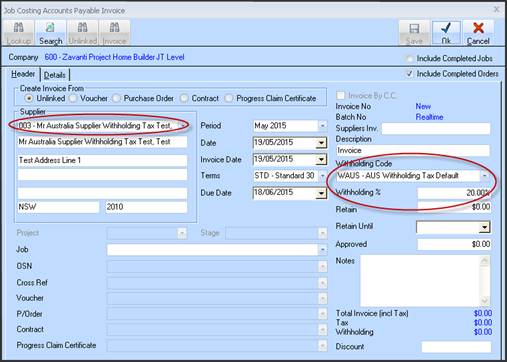
3. Select the appropriate Supplier from the ‘Supplier’ combo box, and the pre-set Withholding Tax Code and Rate will populate and be disabled. These will be used for the invoice calc. on the ‘Details’ tab. As lines are entered as Detail, the Withholding totals displays bottom R/H corner of ‘Header’ tab.
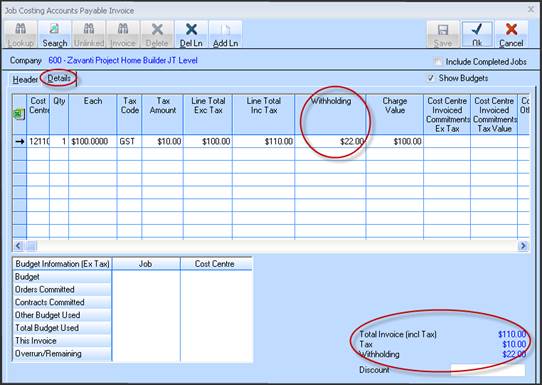
4. To capture actuals of the work done and calc. Tax and payment values, click the ‘Details’ tab, then ‘Add Line’.
5. Either Lookup (Right click) or enter directly the Cost Centre this work applies to.
6. Enter the ‘Each’ value of the work, and optionally Qty etc.
7. If Withholding Tax is to be applied to this Cost Centre, it will calculate as a percentage of the line total , excluding Tax (VAT) and display in the ‘Withholding’ column. An indicator column ‘Withholding Applies to CC’ shows if Withholding Tax has been set against this CC in Cost Centre Maintenance. See Cost Centre Maintenance below.
|
|
For UK Withholding Tax to be applied, the following must apply: |
|
|
•Correct Withholding Tax codes set in Withholding Tax Code Setup. |
|
|
•Format Rule set to ‘UK Based’ on Company Maintenance |
|
|
•Withholding Applies’ switch set for each Cost Centre on Cost Centre Maintenance .See below. |
|
|
•Use Withholding’ switch set on Job Costing Defaults . See below. |